
The most common device management mistakes expats make come down to six things: ignoring 2FA before swapping SIMs, skipping backups, plugging in the wrong voltage, shipping the wrong gear, failing to notify banks, and using public Wi-Fi without a VPN. Fix those six and you avoid the majority of tech disasters that hit Australians in their first weeks abroad.
Quick actions you can take right now:
- 2FA locked to your Aussie number — move to Google Authenticator, Microsoft Authenticator, or Authy before you leave
- No recent backup — run a full device backup to iCloud or Google Drive today
- Unknown power voltage — check every AC adapter label for "100–240V" before you pack
- Shipping the wrong items — carry your phone, laptop and 2FA device as carry-on; ship monitors and speakers by sea
- Bank not notified — call your bank and card issuer this week; ask about international login policies
- Unsafe Wi-Fi habits — install a reputable VPN before departure and use it on every unfamiliar network
Key takeaways
Moving 2FA off SMS before you swap SIMs is the single most effective action Australians can take to avoid account lockouts when relocating abroad.
| Point | Details |
|---|---|
| Migrate 2FA before departure | Switch from SMS to Google Authenticator, Microsoft Authenticator, or Authy and save recovery codes offline. |
| Back up and verify | Complete a full device backup and confirm it succeeded before you fly. |
| Check voltage on every device | Look for "100–240V" on each AC adapter label; single-voltage gear needs a converter, not just an adapter. |
| Notify banks early | Call your bank at least two weeks before departure to confirm international login and 2FA options. |
| Myitbutler for remote recovery | Myitbutler offers fixed-price remote IT support for expats, including 2FA migration, VPN setup, and emergency account recovery. |
Table of Contents
- What should you prepare on your devices before leaving Australia?
- What should you carry, what should you ship, and what are the battery rules?
- Does your gear work on foreign power, or will you fry it?
- How do you keep 2FA working when you change SIMs or countries?
- What can your employer's MDM actually see on your device?
- Why do banking and government apps stop working abroad?
- What security threats should expats expect, and how do you stay safe?
- What do you do if you get locked out of an account or device?
- Extra considerations for families, retirees and travellers with special needs
- Printable device management checklist
- What actually matters most when you relocate
- Myitbutler's remote IT support for expats
- Sources
- FAQ
What should you prepare on your devices before leaving Australia?
The single most important step is updating your account recovery options and completing a full backup. Do that first, then work through the rest.
- Back up everything. Run a full iCloud or Google One backup for your phone. Back up your laptop to an external drive and a cloud service. Verify the backup actually completed.
- Export 2FA recovery codes. For every account using two-factor authentication (2FA), download or print the recovery codes. Store them in a secure, offline location — a password-protected USB or a printed sheet in your travel documents folder.
- Move 2FA off SMS. Install Google Authenticator, Microsoft Authenticator, or Authy and migrate your critical accounts. As ExpressVPN's cybersecurity guide for expats explains, SMS 2FA tied to an Australian number can lock you out the moment you swap SIMs.
- Update your recovery email and payment methods. Make sure every major account has a recovery email you can access without your phone number.
- Notify your bank and card issuers. Call before you fly. Ask specifically about international login policies and whether they support authenticator-app 2FA as an alternative to SMS.
- Run all software updates. Patch your operating system, apps and firmware now. Doing it on a slow hotel Wi-Fi connection overseas is painful.
- Check warranty terms. Some manufacturer warranties are region-locked. Register your devices and photograph serial numbers before you pack.
Pro Tip: Save all recovery codes, passport scans, warranty receipts and insurance documents in one encrypted folder — something like a password-manager vault or an encrypted 7-Zip archive on a USB drive. Keep a second copy with a trusted person back home.
What should you carry, what should you ship, and what are the battery rules?
Take essential devices as carry-on. Ship the bulky stuff by sea when cost matters. That's the bottom line from The Verge's guide to moving tech overseas, which notes that monitors, stereo equipment and large peripherals are good candidates for sea freight, while your phone, laptop and any 2FA-capable device must travel with you.
| Factor | Air freight | Sea freight |
|---|---|---|
| Speed | Days | Weeks to months |
| Cost | High | Low |
| Best for | Urgent, irreplaceable items | Bulky, non-urgent gear |
Lithium battery rules catch a lot of expats off guard:
- Lithium-ion batteries above 100Wh (most laptop batteries) must travel in carry-on, not checked baggage, on most airlines
- Spare/loose batteries are almost always banned from checked luggage entirely
- Power banks follow the same carry-on rule; check your airline's specific watt-hour limits before you fly
- Built-in device batteries (phone, laptop) are fine in checked bags when the device is off and protected from damage
Pro Tip: *Photograph the IMEI number on your phone (dial #06# to display it) and the serial numbers on your laptop and tablet before you pack. Store those photos in your cloud account. If a device is lost or stolen, you'll need those numbers to file a police report and make an insurance claim.
Does your gear work on foreign power, or will you fry it?
Check every device's AC adapter label for the voltage range before you plug anything in. If it says "100–240V, 50/60Hz," you're fine with just a plug adapter. If it says "120V only," you need a voltage converter or you risk permanent damage.
- Phones and laptops — almost always 100–240V; just buy a plug adapter for the destination country
- Kitchen appliances — often single-voltage (240V for Australia, 110–120V for the US/Japan); replace locally rather than convert
- Music equipment and printers — check individually; some are dual-voltage, many are not
- UPS and surge protectors — worth buying locally if you're in a country with unstable power; Australian surge protectors are rated for 230–240V and won't work safely on 110V grids
Pro Tip: Photograph every AC adapter label before you pack. If you're unsure whether a device is dual-voltage, a quick Google of the model number plus "voltage" will confirm it in seconds. Don't guess.
How do you keep 2FA working when you change SIMs or countries?
Replace SMS 2FA with an authenticator app or passkeys before you leave. That one step prevents the most common account lockout expats face. IAN Nomad's guide to 2FA abroad frames it well: treat 2FA like travel insurance — have one main method, one backup, and one exit plan.
- Install Google Authenticator, Microsoft Authenticator, or Authy on your phone.
- Log in to each critical account (email, banking, work tools) and switch 2FA from SMS to the authenticator app.
- Save the backup/recovery codes for each account offline.
- Register a secondary device (a tablet or old phone) with the same authenticator app where the service allows it.
- Enable passkeys on any account that supports them — they're tied to your device, not your phone number.
- Contact your Australian carrier and ask them to add a SIM PIN and a port-out freeze (sometimes called a port-out lock) to your account. This stops someone porting your number without your consent.
- Keep your Australian SIM active for at least 30 days after arrival overseas. Some accounts will still send SMS codes to it during the transition.
eSIM tip: Many modern phones support eSIM, which lets you add a local data plan without removing your Australian SIM. That means you can keep your Aussie number active for 2FA while using local data.
What can your employer's MDM actually see on your device?
Mobile Device Management (MDM) software lets employers control device settings, push apps, and remotely wipe a device. What it generally cannot do is read your private browser history stored locally in personal apps. The distinction matters.
Typical MDM capabilities include:
- Remote wipe of the entire device or a work profile only
- Enforcing screen lock, encryption and password policies
- Installing or blocking specific apps
- Viewing device inventory (model, OS version, storage)
- Location tracking — but only when the policy explicitly enables it and, in most cases, only when the device is enrolled in a supervised mode
Pro Tip: Ask your employer's IT team two specific questions before you move: "What data does our MDM collect?" and "Under what circumstances would you remotely wipe my device?" Get the answers in writing. If your personal accounts are on a work device, consider moving them to a personal phone instead.
For deeper reading on remote workforce cybersecurity and what endpoint policies typically cover, Myitbutler's blog has a practical breakdown.
Why do banking and government apps stop working abroad?
Some services geofence their login pages, blocking access from foreign IP addresses. Others simply flag an unusual location and freeze the account. RemoteFix 24/7 notes that bank 2FA failures and government portal errors are among the most common technical blockers expats hit when trying to complete visa or banking tasks from overseas.
Common app types that fail abroad:
- Australian banking apps — may block logins from foreign IPs or require SMS 2FA to an Australian number
- myGov and ATO portals — sometimes require specific browser settings or reject PDF uploads in the wrong format
- Streaming services — geo-licensed content disappears; this is expected and largely unavoidable without a VPN
- Superannuation portals — often require Australian phone verification
Practical fixes:
- Download PDF statements and tax documents before you leave
- Ask your bank explicitly whether a VPN to an Australian IP is permitted for login — some banks flag VPN traffic as suspicious
- For government portals, check your system clock is set to the correct timezone, use a supported browser, and save documents as standard PDFs before uploading
Pro Tip: Call your bank at least two weeks before departure. Ask them to note international travel on your account, confirm which 2FA methods work overseas, and check whether their app supports login from your destination country.
What security threats should expats expect, and how do you stay safe?
Expats are prime targets for scams and digital theft, particularly in the first weeks when everything is unfamiliar. Slow down, verify every unexpected request through official channels, and never do sensitive banking on public Wi-Fi without a VPN.
Scam checklist:
- Rental and accommodation scams are common in expat hotspots — pay only through verified platforms
- Unexpected messages claiming to be from the ATO, DFAT, or your bank should be verified by calling the official number, not the one in the message
- Never rush a payment because someone creates urgency; that's the scam
- SIM-swap fraud (where someone convinces your carrier to transfer your number to their SIM) is a real threat — a SIM PIN and port-out freeze on your Australian number reduce this risk significantly
Public Wi-Fi is a genuine risk for sensitive operations. Use a reputable VPN on every unfamiliar network. For securing your remote work environment, a VPN combined with device encryption covers most of the exposure.
Recording your IMEI and serial numbers before departure speeds up recovery significantly if your phone is stolen.
Pro Tip: Enable "Stolen Device Protection" on iPhone (Settings > Face ID & Passcode) or the equivalent theft protection on Android before you leave. These features require biometric authentication for sensitive changes when the device is away from familiar locations.
What do you do if you get locked out of an account or device?
Act in this order:
- Try your backup codes first — these are the offline codes you saved before departure.
- Use a secondary authenticator device if you registered one.
- Contact the service's account recovery process using your registered recovery email.
- Call your bank's international fraud line if a financial account is involved — have your passport number and account details ready.
- Contact your carrier's international support line if your SIM or number is involved.
- Notify your employer's IT helpdesk if a work device or work account is locked.
- Contact the nearest Australian embassy or consulate if you need identity documents to support a recovery process.
Have these ready before you call anyone:
- Passport or national ID
- Device IMEI and serial number
- Screenshots of any error messages
- The email address registered to the account
When the problem is technical — VPN configuration, device reconfiguration, or a complex account recovery — remote IT support from a qualified provider is faster than working through it alone. Myitbutler offers paid remote troubleshooting sessions specifically for expats in this situation.
Extra considerations for families, retirees and travellers with special needs
Families and retirees need extra backups, account delegations, and verified recovery paths before they move. The stakes are higher when pensions, healthcare access, or children's devices are involved.
- Set up delegated access for Centrelink and myGov accounts so a trusted person in Australia can assist if you can't log in
- Keep printed copies of pension statements, Medicare details, and visa documents — digital-only is a single point of failure
- For children's devices, configure parental controls and content filters before departure; some parental control apps are region-restricted
- Note local emergency numbers and healthcare contacts for your destination and store them offline
- If a family member has accessibility needs, check that assistive technology apps work in the destination country before you arrive
Pro Tip: Managing multiple household devices? Use a shared password manager (like 1Password or Bitwarden) with a family plan. Every family member gets access to shared credentials without anyone needing to text passwords around.
Printable device management checklist
Save this or print it before you fly.
Backups
- Full phone backup completed (iCloud or Google One)
- Laptop backed up to external drive and cloud
2FA and accounts
- SMS 2FA replaced with authenticator app on all critical accounts
- Recovery codes saved offline
- Recovery email updated on all accounts
- Secondary authenticator device registered
SIM and carrier
- SIM PIN enabled on Australian number
- Port-out freeze requested from carrier
- Bank notified of international travel
Power and hardware
- All AC adapters checked for 100–240V rating
- Plug adapters purchased for destination
- IMEI and serial numbers photographed and saved to cloud
Shipping and packing
- Essential devices packed as carry-on
- Lithium battery rules checked for your airline
- Receipts and warranty documents packed or scanned
Security
- VPN installed and tested
- Stolen device protection enabled
- Password manager installed and up to date
Apps and access
- Banking app tested from a foreign IP (use a VPN to test)
- Key documents downloaded as PDFs
- myGov and ATO access verified
What actually matters most when you relocate
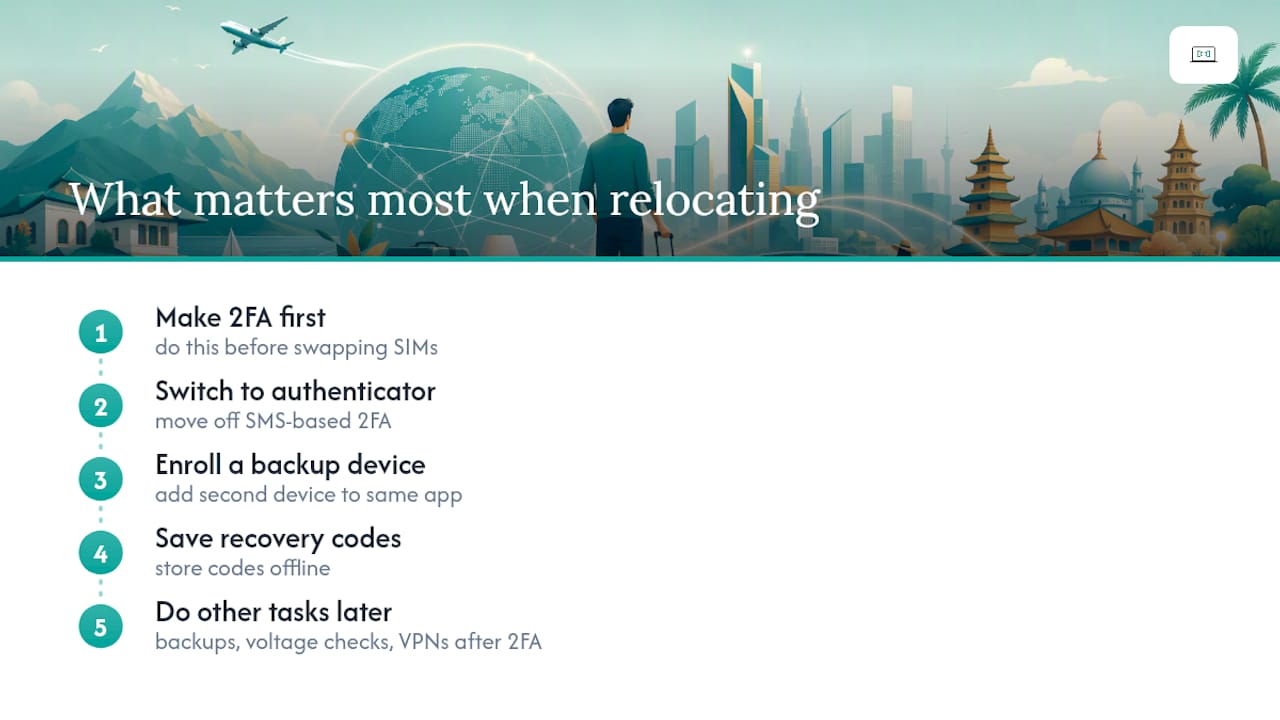
The conventional wisdom says "back up your data." That's true, but it misses the real failure mode. The thing that actually derails expats is losing account access, not losing files. Files are recoverable. Being locked out of your bank account in a foreign country, with no working phone number and no backup codes, is a crisis that can take days to resolve.
Every expat I've spoken with who had a smooth digital transition did one thing differently: they treated 2FA migration as the first task, not an afterthought. Moving off SMS-based 2FA before swapping SIMs is the single highest-leverage action you can take. Everything else — backups, voltage checks, VPNs — matters, but none of it hits as hard as being locked out of your primary accounts on day one.
The second thing they got right was having a backup device. Not a spare phone necessarily, just a second device enrolled in the same authenticator app. That redundancy has saved more than one person I know from a very bad week.
If there's one thing to do today: open your most critical accounts, switch 2FA to an authenticator app, and save the recovery codes somewhere offline. Do that before anything else.
Myitbutler's remote IT support for expats
Australians moving abroad face a specific set of IT problems: 2FA migration, bank access issues, VPN configuration, and urgent account recovery when things go wrong. Myitbutler provides Australian-standard remote IT support for exactly these situations, backed by over 15 years of enterprise experience and certifications including CCNA and CompTIA Security+.
Services relevant to expats include pre-departure device checks, 2FA migration assistance, VPN setup, banking app access troubleshooting, and emergency remote recovery sessions. There are no long-term contracts and pricing is transparent and fixed. Support is available via WhatsApp, email, and direct messaging across time zones.
If you're moving soon or already overseas and hitting access problems, book a consultation and get the issue resolved by someone who understands both the Australian systems you're leaving and the technical realities of living abroad.
Sources
- Moving tech overseas: how to pack and what to expect — The Verge
- Cybersecurity guide for expats: Online safety for moving abroad — ExpressVPN
- Two‑factor authentication abroad: 7 account lock traps — IAN Nomad
- The digital side of moving abroad nobody prepared us for — Expat Focus
FAQ
Can MDM see my browsing history?
MDM software can view device-level information such as installed apps, OS version, and compliance status, but it generally cannot read private browsing history stored locally in personal apps. If you're concerned, ask your employer's IT team exactly what data their MDM policy collects.
What are the biggest challenges of mobile device management for expats?
The main challenges are keeping devices compliant with employer policies across different countries, managing app restrictions that vary by region, and ensuring remote wipe policies don't affect personal data stored on a work device.
What are the disadvantages of MDM on a personal device?
MDM on a personal device can enforce password policies, restrict certain apps, and in some configurations enable remote wipe of the entire device, not just the work profile. Using a separate personal device for private accounts is the safest boundary.
What are the most common problems Australians face when moving overseas?
Expat Focus reports that connectivity, banking access, and local service registration are the most commonly overlooked digital challenges. Account lockouts from SMS-based 2FA and bank geofencing are the most disruptive in the first weeks.