
TL;DR:
- Starting with the right Windows edition and fully updating machines is essential for secure remote desktop access. Using a VPN instead of port forwarding significantly reduces security risks for startups. Proper configuration and ongoing monitoring prevent vulnerabilities, helping startups maintain safe, reliable remote connections.
Remote desktop access is the process of enabling authorised users to securely connect to and control a workstation from any location, giving your startup's distributed team full access to office machines without being physically present. To set up remote desktop access for a startup, you need host machines running Windows Pro, Enterprise, or Education editions, Network Level Authentication (NLA) enabled, and a secure connection method such as a VPN. Skipping any of these three requirements creates gaps that attackers actively exploit. Myitbutler supports startups through every stage of this process, from initial configuration to ongoing monitoring, backed by over 15 years of enterprise experience and certifications including CompTIA Security+ and CCNA.
What do you need before setting up remote desktop access?
The most common reason a startup's remote desktop setup fails before it starts is the wrong Windows edition on host machines. Windows Home edition cannot host RDP sessions natively. Every machine you want staff to connect to remotely must run Windows Pro, Enterprise, or Education. This is a hard requirement, not a configuration workaround.

Beyond the edition check, you need to confirm that every host machine is fully patched and updated before enabling remote access. Unpatched machines exposed via remote desktop are prime targets for attackers. Run Windows Update on every host and reboot before proceeding.
User accounts also require attention before you touch any remote desktop settings. Accounts without passwords cannot connect, and access should be restricted to only the staff members who genuinely need it. Set strong, unique passwords for every account that will use remote desktop, and create a dedicated remote access group in Active Directory or local user management if your team is large enough to warrant it.
The table below summarises the baseline requirements for any host machine in a startup environment.
| Requirement | Detail |
|---|---|
| Windows edition | Pro, Enterprise, or Education only. Home edition cannot host RDP. |
| OS patch status | Fully updated before enabling remote desktop. |
| Network Level Authentication | Enabled on all hosts as a baseline security standard. |
| User account passwords | All remote-access accounts must have strong, unique passwords. |
| User permissions | Restrict remote desktop access to named, approved users only. |
Network Level Authentication requires a user to authenticate before a full remote session is established. This prevents attackers from reaching the Windows login screen at all, which stops credential brute-force attacks at the door. NLA is enabled by default on Windows 11 Pro, but always verify it is active before going live.
How do you configure remote desktop access step by step?
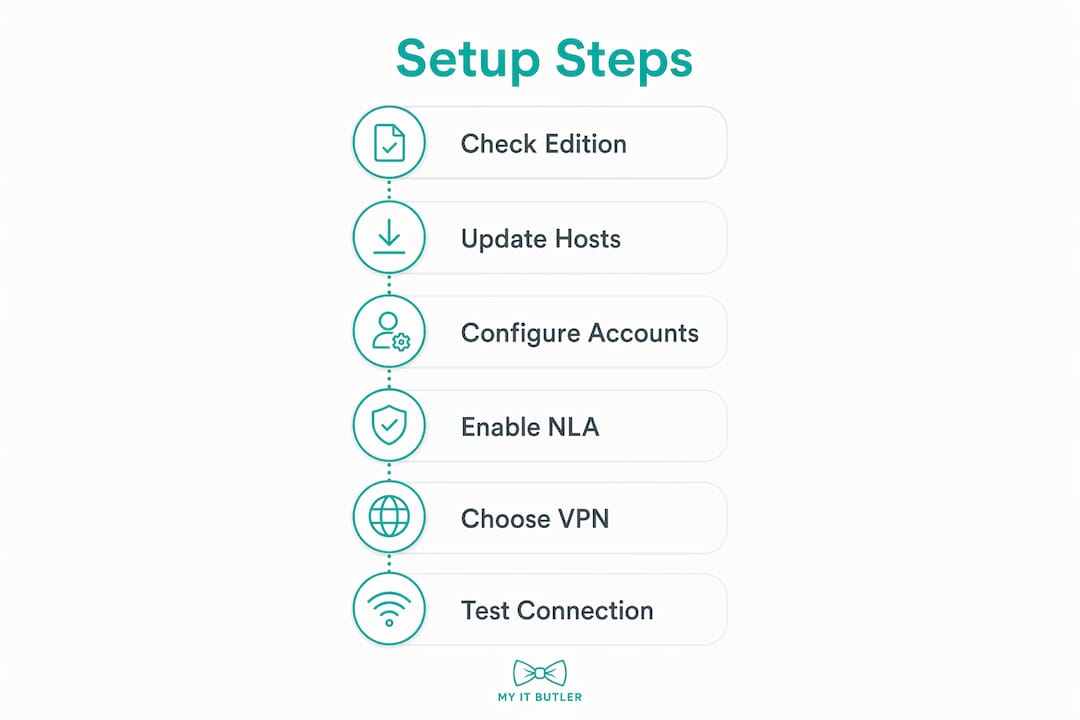
Once your host machines meet the prerequisites, enabling Remote Desktop Protocol (RDP) takes less than five minutes per machine. Follow these steps on each host.
- Open Settings, go to System, then select Remote Desktop.
- Toggle Enable Remote Desktop to On and confirm the prompt.
- Click Advanced settings and verify that Network Level Authentication is checked.
- Under Remote Desktop users, add the specific accounts that need access. Do not leave this open to all users.
- Open Windows Defender Firewall and confirm that the Remote Desktop inbound rule is enabled for the relevant network profile (Domain or Private, not Public).
- Note the machine's local IP address from Settings > Network for use during client connection.
For staff connecting from inside the same office network or over a VPN, these six steps are sufficient. External access over the internet requires one additional layer.
Direct port forwarding vs VPN: which should you use?
Connecting to a host over the internet means traffic must reach TCP port 3389, the default RDP port. Port forwarding on your router sends external traffic on that port directly to the host machine. A VPN creates an encrypted tunnel so the host machine never needs to be directly reachable from the internet.
| Method | Setup time | Security level | Recommended for startups? |
|---|---|---|---|
| Direct port forwarding (TCP 3389) | Under 10 minutes | Low. RDP exposed to internet. | No. High risk of brute-force attacks. |
| VPN tunnel | 30–60 minutes depending on infrastructure | High. RDP never publicly exposed. | Yes. Strongly recommended. |
Exposing RDP directly to the internet is considered a high-risk practice. Automated scanners probe port 3389 constantly, and a single weak password can result in a full system compromise. A VPN eliminates this exposure entirely by making the host invisible to external scanners.
For startups without an existing VPN, a site-to-site VPN on your router or a software-based VPN solution installed on each host machine are both practical options. Your IT manager or a managed service provider can configure either in under an hour.
How do clients connect to a startup's remote desktop host?
Microsoft provides Remote Desktop clients for Windows, macOS, iOS, Android, and Linux. This broad support means your team can connect from virtually any device without purchasing third-party software. Download the appropriate client from the Microsoft website or the relevant app store.
To connect, staff need the following information ready:
- The host machine's IP address or computer name (use a static IP or a dynamic DNS hostname for reliability).
- The custom port number if you have changed the default from 3389.
- Their Windows username and password for the host machine.
- VPN credentials if your startup uses a VPN for remote access (connect to the VPN first, then launch the Remote Desktop client).
Session options worth configuring include clipboard sharing, so staff can copy and paste between their local device and the remote machine, and local printer redirection if they need to print documents. Both settings appear in the Local Resources tab of the Remote Desktop Connection client on Windows.
Pro Tip: Always update Remote Desktop client apps to the latest version before connecting. Outdated clients can introduce compatibility issues and miss security patches that protect your session.
Multi-factor authentication (MFA) adds a critical second layer of verification. If your startup uses Microsoft Entra ID (formerly Azure AD), you can enforce MFA for remote desktop sessions through Conditional Access policies. This is the single most effective control you can add after NLA.
For a broader look at remote access technology options beyond native RDP, including when a managed solution makes more sense than a self-hosted setup, that resource covers the full picture.
Troubleshooting remote desktop issues and keeping your setup secure
Most connection failures fall into a small number of categories. Work through this list before escalating.
- Wrong Windows edition. If the host machine runs Windows Home, RDP hosting is unavailable. The only fix is upgrading to Windows Pro or replacing the machine.
- Host machine asleep or hibernating. Remote desktop cannot connect to a sleeping machine. Disable sleep mode on all host machines via Power & sleep settings and set the display to turn off separately.
- Firewall blocking the connection. Confirm the Remote Desktop inbound rule is active in Windows Defender Firewall. If a third-party firewall is installed, add an explicit allow rule for TCP port 3389 (or your custom port).
- Port forwarding misconfigured. If you are using direct port forwarding, verify the router rule points to the correct internal IP address and that the host machine has a static local IP.
- Credentials rejected. Confirm the account has a password set and is listed under Remote Desktop users on the host machine.
Changing the default RDP port from 3389 to a non-standard port, such as 43389, reduces automated scanning attacks significantly. This requires updating the registry key at HKEY_LOCAL_MACHINE\SYSTEM\CurrentControlSet\Control\Terminal Server\WinStations\RDP-Tcp and creating a matching firewall rule for the new port. Perform this change carefully. An error in either step can lock all users out of the host machine until you access it locally to correct the mistake.
For ongoing security, remote network security strategies for distributed teams go well beyond the initial setup. Review remote session logs regularly to spot unusual login times or failed attempts. Patch host machines on a fixed schedule, not just when issues arise. And revisit your user access list every quarter to remove accounts that no longer need remote access.
Pro Tip: Never leave RDP exposed directly to the public internet, even temporarily. Set up the VPN first, then enable remote desktop. The 30–60 minutes of VPN configuration is far less costly than recovering from a ransomware attack delivered through an exposed RDP port.
For IT managers who want a structured view of remote system administration approaches and how to manage these environments efficiently across a growing team, that resource covers the administrative side in depth.
Key takeaways
Startups that configure remote desktop access correctly from the start avoid the security incidents and connection failures that come from skipping prerequisites or exposing RDP to the internet.
| Point | Details |
|---|---|
| Windows edition matters | Only Pro, Enterprise, and Education editions can host RDP sessions natively. |
| NLA is non-negotiable | Enable Network Level Authentication on every host to block brute-force attacks before login. |
| VPN over port forwarding | Route RDP through a VPN rather than exposing TCP port 3389 directly to the internet. |
| Patch before you enable | Update every host machine fully before turning on remote desktop access. |
| Restrict and monitor access | Limit remote desktop to named users, enforce MFA, and review session logs regularly. |
What I've learned from watching startups get this wrong
The pattern I see most often is a startup enabling remote desktop on a Friday afternoon to solve an urgent access problem, skipping the VPN step because it takes longer, and then discovering a compromised machine the following week. The urgency is real, but the shortcut is almost always more expensive than the delay.
Startups also tend to underestimate how quickly their remote access setup becomes unmanaged. The person who configured it leaves, no one documents the port forwarding rules or the VPN credentials, and six months later the IT manager inherits a setup they cannot fully audit. Standardising the process from day one, including documentation, makes every future support call faster and cheaper.
The other thing worth saying plainly: native Windows RDP is genuinely good. It is cost-effective, built into the operating system, and supported across every major client platform. The problem is never the technology. The problem is the security configuration around it. NLA, a VPN, and port changes together create a setup that is both practical and defensible. Skipping any one of them shifts the risk profile considerably.
If your startup is growing quickly and you do not have a dedicated IT team, the configuration and ongoing monitoring of remote desktop access is exactly the kind of task that benefits from professional support. The cost of getting it wrong far exceeds the cost of getting expert help upfront.
— Thomas
Myitbutler can handle your startup's remote desktop setup
Setting up and securing remote desktop access takes time, and the security decisions made during configuration have long-term consequences for your startup.
Myitbutler provides remote IT support for startups and distributed teams, covering everything from initial remote desktop configuration to ongoing monitoring and patch management. The team holds CompTIA Security+, CCNA, and PRINCE2 certifications, and operates to Australian enterprise standards for clients across multiple time zones. There are no long-term contracts, and pricing is transparent and fixed. If you want expert eyes on your remote access setup before it becomes a problem, book a free consultation and get a clear picture of where your current configuration stands.
FAQ
What Windows editions support remote desktop hosting?
Windows Pro, Enterprise, and Education editions support hosting RDP sessions. Windows Home edition cannot act as a remote desktop host natively.
Is it safe to expose RDP directly to the internet?
Exposing RDP directly to the internet is high risk. Automated scanners target TCP port 3389 constantly, so routing RDP through a VPN is the recommended approach for any startup.
What is Network Level Authentication and why does it matter?
Network Level Authentication requires users to authenticate before a remote session opens. This prevents attackers from reaching the Windows login screen and stops brute-force attacks at the connection stage.
How do I connect to a remote desktop from a Mac or mobile device?
Microsoft provides official Remote Desktop clients for macOS, iOS, and Android. Download the client, enter the host IP address and your Windows credentials, and connect through your VPN if one is configured.
How do I troubleshoot a failed remote desktop connection?
Check that the host runs a supported Windows edition, that Remote Desktop is enabled, that the firewall allows the RDP port, and that the user account has a password set and is listed under Remote Desktop users on the host machine.