
The quickest wins for laggy Remote Desktop Protocol (RDP) sessions are, in order: swap Wi-Fi for wired Ethernet, run a ping test to check packet loss, cut back the visual load in your RDP settings, and enable UDP transport with hardware encoding where your setup supports it. That order matters because each fix removes a different bottleneck, from raw network path to what the screen has to render every frame.
- Wired Ethernet or 5GHz Wi-Fi instead of the crowded 2.4GHz band
- Ping and packet loss test to the host before touching any settings
- Lower colour depth and disable RDP visual effects
- Enable UDP transport and hardware (H.264/AVC) encoding
- Check whether traffic is hairpinning through a VPN or proxy
If those four still leave you with sustained latency over 100ms or packet loss above 1 to 2%, the problem usually sits deeper in the network or server than a client tweak can reach, and that's the point to bring in managed remote IT support.
Key Takeaways
Fixing remote desktop latency requires measuring ping and packet loss first, then working through client, host, and network causes in that order, escalating only once DIY fixes hit their limit.
| Point | Details |
|---|---|
| Test before you tweak | Run ping and traceroute to get a baseline before changing any settings. |
| Wired beats Wi-Fi | Ethernet or 5GHz Wi-Fi removes a common source of jitter and dropped packets. |
| Cut visual load first | Lower colour depth and disable wallpaper, animations, and font smoothing. |
| Watch the thresholds | Ping over 100ms or packet loss above 1 to 2% signals a deeper network issue. |
| Escalate when it persists | Myitbutler runs a fixed-price remote diagnostic to trace routing and host issues DIY fixes can't reach. |
Table of Contents
- Fix remote desktop latency: the 60 second checklist
- How do you measure RDP latency and packet loss?
- What client settings actually reduce RDP lag?
- What server-side changes reduce encoding delay?
- Is your network routing adding hidden latency?
- Which Group Policy and codec settings help most?
- How do you confirm the fix actually worked?
- Field notes on what actually breaks RDP sessions
- Book a remote diagnostic if the DIY fixes don't hold
- Sources
- FAQ
Fix remote desktop latency: the 60 second checklist
Run through this before you touch any advanced settings; you can also use technical network-quality testing tools and diagnostics to get detailed insights into packet loss and jitter. Most RDP lag traces back to something on this list.
- Plug both the client machine and the host (if local) into Ethernet, or switch Wi-Fi to the 5GHz band.
- Pause OneDrive, Dropbox, or any sync client eating bandwidth in the background.
- Open RDP display settings and drop colour depth, disable wallpaper and font smoothing.
- Ping the server's IP address directly and watch for dropped packets or spikes.
- Disconnect and reconnect the session, then type a sentence and watch for input lag.
Note the ping average, any packet loss percentage, and what time of day the lag hits worst. That's the evidence an ISP or an IT support technician will actually want, not "it feels slow." Ranked practical fixes like these remove the majority of perceived lag when applied in this order, because you're clearing the easy causes before hunting for the hard ones.
How do you measure RDP latency and packet loss?
Ping, traceroute, and a basic speed test tell you almost everything you need before changing a single setting. Open a command prompt or terminal and run ping [server IP] -n 50 on Windows, or ping -c 50 [server IP] on macOS and Linux, to get an average round-trip time and a packet loss percentage. Follow it with pathping on Windows or mtr on Linux and Mac to see which hop along the route is adding delay.
The numbers that matter: ping under 30ms feels instant, 50 to 100ms is noticeably sluggish but usable, and anything over 100ms starts to feel broken. Packet loss beyond a low percentage threshold causes RDP sessions to drop frames and freeze.
- Ping: average and worst-case round-trip time
- Traceroute or MTR: which hop introduces the delay
- Speedtest: confirms bandwidth isn't the real issue (it rarely is)
A 5 to 10 Mbps connection is usually plenty for typical office RDP use, so don't waste time upgrading your internet plan before you've ruled out latency and packet loss as the actual cause. Screenshot the results before you start making changes. You'll want a before-and-after comparison, and if the problem persists, your ISP or IT support provider will ask for exactly this.
What client settings actually reduce RDP lag?
The RDP client app itself is doing more work than people realise, decoding video, rendering fonts, and redirecting devices, and every one of those tasks adds milliseconds. Start with the client you're using: a native RDP app decodes frames straight to the GPU, while browser-based remote desktop sessions add extra compositing steps that can cost 16 to 48ms per frame. If you're accessing through a browser tab for convenience, switch to the native Microsoft Remote Desktop client and see if the lag drops immediately.
From there, work through the display settings:
- Drop colour depth to 16-bit instead of True Colour
- Turn off desktop wallpaper, font smoothing, and window animations under Experience settings
- Enable persistent bitmap caching so repeated screen elements don't re-render
- Turn off device redirection for printers and drives you're not actively using
Pro Tip: Test one change at a time and reconnect between each. Stacking five tweaks at once feels efficient, but you won't know which one actually fixed it, and you'll need that answer if the lag comes back next week.
These changes cost nothing and take about two minutes each, which makes them the first place to look before assuming the network itself is at fault.
What server-side changes reduce encoding delay?
The host machine is often doing the heavy lifting nobody thinks to check. If the server or workstation you're connecting to is running a backup job, syncing to the cloud, or chewing through a scheduled task, it's competing with your session for the exact same CPU cycles that RDP needs to encode the screen.
Check CPU, GPU, and disk activity on the host during a laggy session. If it's pegged, that's your answer before you look anywhere else. From there:
- Pause backups, cloud sync, and scheduled maintenance tasks during work hours
- Switch the host's power plan to High Performance rather than Balanced
- Use the Easy Print driver instead of full printer redirection where possible
- Review compression settings carefully, since aggressive compression trades CPU load for bandwidth savings and can backfire on an already busy host
- Enable H.264/AVC hardware encoding if the GPU supports it, which offloads the encode job from the CPU entirely
On a Remote Desktop Session Host serving multiple users, these settings interact. What works fine for one concurrent session can starve the host once five people are connected at once, so test under realistic load before rolling changes out to everyone.
Is your network routing adding hidden latency?
A direct connection between client and host is always faster than one that detours through a relay, VPN gateway, or inspection proxy. Every hop adds milliseconds, and a relay server in the wrong region can add far more than a few. If your organisation routes all traffic through a corporate VPN or Secure Web Gateway, RDP traffic is often getting caught in that inspection pipeline unnecessarily.
| Routing setup | Typical latency impact |
|---|---|
| Direct client-to-host connection | Lowest, baseline latency for the path |
| Through VPN with full tunnelling | Adds the VPN gateway's round trip on top |
| Through SWG or proxy with inspection | Adds inspection overhead plus potential hairpin routing |
- Set up split tunnelling so RDP traffic bypasses the VPN tunnel entirely
- For cloud-hosted desktops, use an optimised egress path like a NAT Gateway or UDR rather than routing through a central firewall, which keeps RDP traffic on the provider's own backbone instead of detouring through inspection
- Check whether your network device is doing TLS interception on RDP's port, which adds real overhead
If you manage the VPN yourself, our guide to why VPN split tunnelling matters walks through the configuration in more detail.
Which Group Policy and codec settings help most?
For IT teams managing multiple RDP hosts, a handful of Group Policy changes make a measurable difference, but every one of them needs testing before a wide rollout.
- Enable "Use both UDP and TCP" for RDP transport, since UDP carries display data with less overhead while TCP handles input, and you can verify it's active in Resource Monitor under the network tab
- Set the hardware default graphics adapter via Group Policy and confirm H.264/AVC encoding is actually engaging, not just enabled
Pro Tip: Before turning on hardware encoding fleet-wide, check GPU memory usage under your expected concurrent session count. Some encoding modes increase per-session memory, and what runs fine with three users can choke a host running thirty.
Registry tweaks for frame rate caps and compression exist and can help, but treat them as load-test candidates, not day-one changes across a production RDS deployment.
How do you confirm the fix actually worked?
Don't take "it feels faster" as proof. Re-run the same ping and traceroute tests from earlier and compare the numbers side by side, then reconnect and type a sentence to check whether input lag has genuinely dropped.
- Re-run ping and pathping to the same server IP and compare against your earlier screenshot.
- Test interactive response: open a document, type, and watch for delay between keystroke and screen update.
- Set up a simple synthetic ping monitor that alerts on packet loss or latency spikes outside business hours.
- Keep an eye on host CPU and GPU load during peak usage for the following week.
If latency still sits above 100ms consistently, or packet loss reappears intermittently, that's usually evidence of an ISP routing issue or a hairpin you haven't caught yet, and it's worth escalating rather than repeating the same client tweaks. Our IT performance metrics guide covers what ongoing monitoring should look like.
Field notes on what actually breaks RDP sessions
Most of the RDP tickets we see come down to four repeat offenders: ISP routing that changes without warning, a relay server nobody realised was in the path, a VPN or Secure Web Gateway inspecting traffic it shouldn't touch, or a host quietly overloaded by a scheduled backup. Our technicians, holding CCNA, CompTIA Security+, and PRINCE2 certifications, run the same traceroute and load checks outlined above remotely, then compare results against Microsoft's own optimisation guidance before touching a single setting. Fifteen years of managed enterprise IT has taught us the fix is rarely the exotic one.
Book a remote diagnostic if the DIY fixes don't hold
If you've worked through the checklist and the lag keeps creeping back, that's usually a sign the cause is sitting somewhere you can't easily see from your own machine, an ISP routing change, a misconfigured gateway, or a host quietly running out of headroom. That's exactly the gap Myitbutler fills: a focused remote diagnostic instead of a guessing game with your internet provider.

A typical 60 to 90 minute session includes a full latency and packet loss trace, a check of your routing path for relay or VPN hairpins, and any client or server configuration changes needed on the spot. Pricing is fixed and quoted upfront, and there's no long-term contract locking you in afterwards. If you're an expat, digital nomad, or running a distributed team across time zones, coordination happens over WhatsApp, Zoom, or email, whatever suits your schedule. Book a free initial chat to describe the problem, or go straight to a paid diagnostic consult if you're ready to get it sorted this week.
Sources
- 7 ways to reduce remote desktop lag — Remio blog
- Internet Speed Requirements for Remote Desktop and RDP — SpeedtestHQ
- Rdp
FAQ
Why are remote desktops so laggy?
RDP sessions lag most often because of network latency and packet loss rather than bandwidth, usually caused by Wi-Fi interference, an overloaded host, or traffic routed through a VPN or proxy that adds hops to the connection.
How do I make RDP run smoother?
Switch to wired Ethernet, lower the colour depth and disable visual effects in RDP's Experience settings, enable UDP transport, and make sure background sync apps aren't competing for bandwidth on either end.
How do you fix virtual desktop latency?
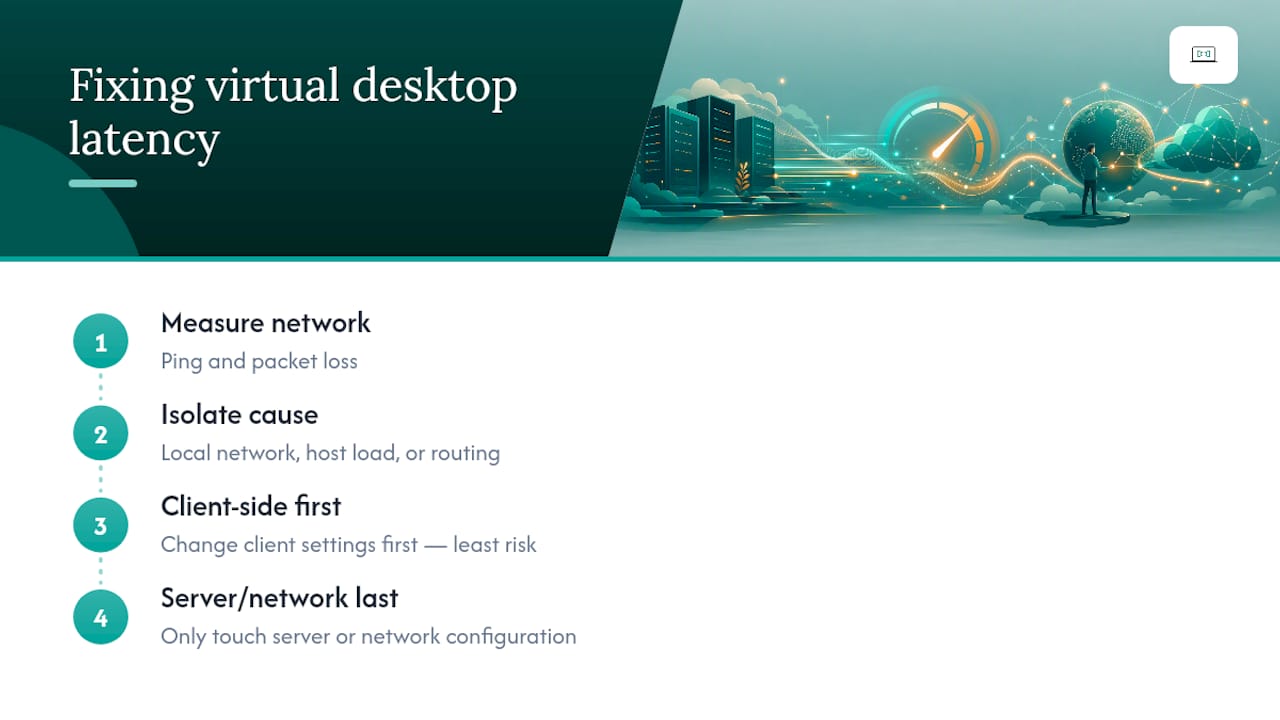
Start by measuring ping and packet loss to isolate whether the issue is local network, host load, or routing, then apply client-side settings changes first since they carry the least risk before touching server or network configuration.
How much latency does RDP have?
A well-configured RDP session on a direct connection typically runs under 30ms, which feels instant, while anything sustained above 100ms starts to feel broken and points to a routing or host problem worth investigating.