

Your computer's slowness has a specific cause, and Task Manager will show you what it is within thirty seconds. Press Ctrl + Shift + Esc right now, click the Performance tab, and check whether CPU, Memory, Disk, or Network is sitting near 100%. That single number tells you which fix actually matters, instead of wasting an afternoon trying everything.
Before diagnosing further, run the three fixes that solve most slowdowns outright: restart the machine (this clears memory leaks and applies queued updates), close any browser windows with more than a dozen tabs open, and check you have at least 10 to 15% of your storage drive free. Curtin University's guidance on software-related slowdowns confirms that free storage space is essential for background maintenance tasks to run properly, and a cramped drive will drag down everything else you try.
Here's the five- to ten-minute checklist to run before you troubleshoot anything else:
- Restart fully (not just sleep) — 2 minutes, clears RAM and applies pending updates
- Close unused browser tabs and apps — 1 minute, frees RAM instantly
- Check free disk space in File Explorer — 1 minute, aim for 10 to 15% free minimum
- Open Task Manager and note which resource is maxed out — 2 minutes
- Run a quick Windows Security scan if you haven't scanned recently — 5 to 10 minutes
- Check for pending Windows updates — 2 minutes to check, longer to install
Pro Tip: Do this check after a normal restart, with your usual apps open. Checking Task Manager on a freshly rebooted machine with nothing running will hide the real problem.
Key Takeaways
Diagnosing computer performance issues with Task Manager before attempting any fix is what separates a five-minute solution from a wasted afternoon and unnecessary spending.
| Point | Details |
|---|---|
| Diagnose before fixing | Open Task Manager (Ctrl + Shift + Esc) and check CPU, Memory, Disk, and Network for anything sustained above 80%. |
| Run the free fixes first | Restart fully, close heavy apps, disable High-impact startup items, and run Storage Sense before spending money. |
| Keep storage free | Maintain 10 to 15% free space on your storage drive so background maintenance can run properly. |
| Know your RAM threshold | Memory usage consistently above 80% signals a RAM upgrade is worthwhile; 16 GB is the 2026 practical minimum. |
| Call a professional when hardware is failing | SMART warnings, recurring blue screens, or CPU maxed out with no fix point to hardware limits Myitbutler can diagnose remotely. |
Table of Contents
- Diagnosing computer performance issues with Task Manager and Resource Monitor
- Fast software fixes you can try right now
- Storage: freeing space and knowing when an SSD upgrade pays off
- When to add RAM and how to read CPU limits
- Advanced checks: drivers, firmware, and failing hardware
- Simple maintenance habits that stop slowdowns coming back
- Deciding whether to upgrade parts or replace the whole computer
- Reviewing and updating your BIOS or UEFI firmware
- How we approach a slow computer support call
- Get remote IT support sorted without the callout fees or contracts
- Sources
- FAQ
Diagnosing computer performance issues with Task Manager and Resource Monitor
Task Manager is the fastest way to isolate exactly which computer performance issues you're dealing with, and it's already installed on every Windows machine. HP's diagnostic-first guidance backs this approach directly: identify the bottleneck before you touch anything else, because guessing wastes time and sometimes money.
Open Task Manager with Ctrl + Shift + Esc, then click Performance. You'll see four or five live graphs: CPU, Memory, Disk (or multiple disks), GPU, and sometimes Ethernet or Wi-Fi. Watch them for sixty seconds while you use the computer normally. Anything sustained above 80% is your bottleneck, not a passing spike.
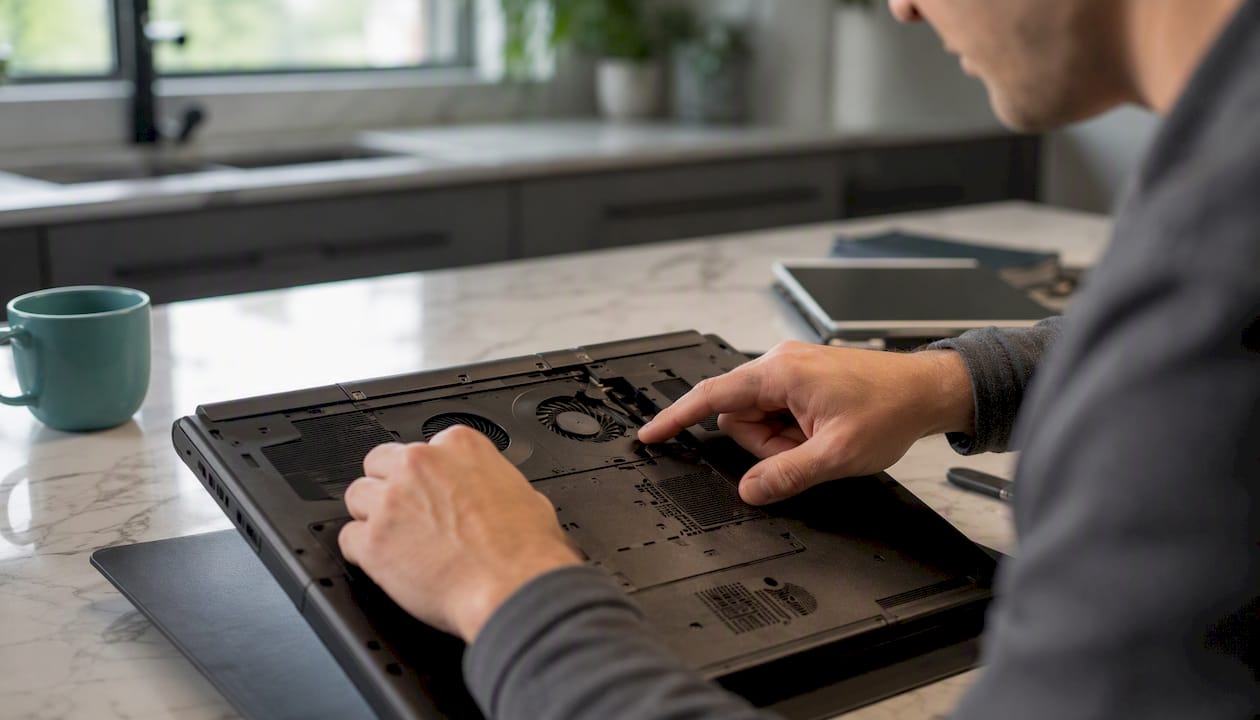
For a deeper look, open Resource Monitor (search for it in the Start menu). It breaks each resource down by individual process, so you can see exactly which app is chewing through memory or hammering the disk. The Processes tab in Task Manager does something similar but with less detail.
Here's how symptoms typically map to the underlying issue:
- Spinning cursor, jerky mouse movement, high Disk% → usually a storage bottleneck, often a near-full or ageing hard drive
- Fans roaring, high CPU%, laptop hot to touch → CPU is maxed, likely too many background processes or an underpowered chip for the workload
- Apps take forever to switch, high Memory% → not enough RAM for what you're running
- Web pages load slowly, other apps fine, high Network usage → connectivity issue, not a computer performance issue at all
The Startup tab in Task Manager deserves a look too. It lists every app that launches when Windows boots, along with a "Startup impact" rating of Low, Medium, or High. A laptop with a dozen High-impact apps launching at boot will feel sluggish from the second you log in, regardless of how fast the hardware is.
Pro Tip: Run this diagnostic check right after a fresh restart, with your typical daily apps open — email, browser, whatever you use most. Checking on a bare, just-booted system with nothing running gives you a false "everything's fine" reading that won't match how the machine behaves an hour later.
Fast software fixes you can try right now
Most computer performance issues resolve with software changes alone, no hardware spend required. Microsoft's own performance guidance lays out exactly this kind of stepwise approach: work through the free fixes before considering anything that costs money.
- Restart the computer properly. Not sleep, not hibernate, a full shutdown and power-on. This clears memory that's been leaking for days and lets any pending update finish installing.
- Close browser tabs and heavy apps. Right-click any process using excessive CPU or Memory in Task Manager's Processes tab and select "End task."
- Disable High-impact startup apps. Go to Settings > Apps > Startup, and toggle off anything you don't need running the moment you log in (most people can turn off half the list here).
- Run Storage Sense. Settings > System > Storage > Storage Sense will automatically clear temp files, empty the Recycle Bin on a schedule, and reclaim space from old downloads.
- Run a quick Windows Security scan. Open Windows Security from the Start menu, click Virus & threat protection, then Quick scan.
- Check for and install Windows updates. Settings > Windows Update. Driver updates bundled here often fix compatibility slowdowns you'd otherwise never diagnose.
Quick reference on time and cost for each:
- Restart: 2 minutes, free
- Closing tabs/apps: 1 to 2 minutes, free
- Disabling startup apps: 5 minutes, free
- Storage Sense setup: 5 minutes to configure, runs automatically after, free
- Windows Security scan: 5 to 15 minutes depending on drive size, free
- Windows updates: 10 to 40 minutes depending on update size, free
MakeUseOf's guide to improving Windows performance without spending money makes a point worth repeating here: built-in Windows Security is genuinely capable for most home and small business users now. Running a second or third real-time antivirus tool alongside it usually creates more drag than protection, because each one scans files independently and they can conflict with each other.
Storage: freeing space and knowing when an SSD upgrade pays off
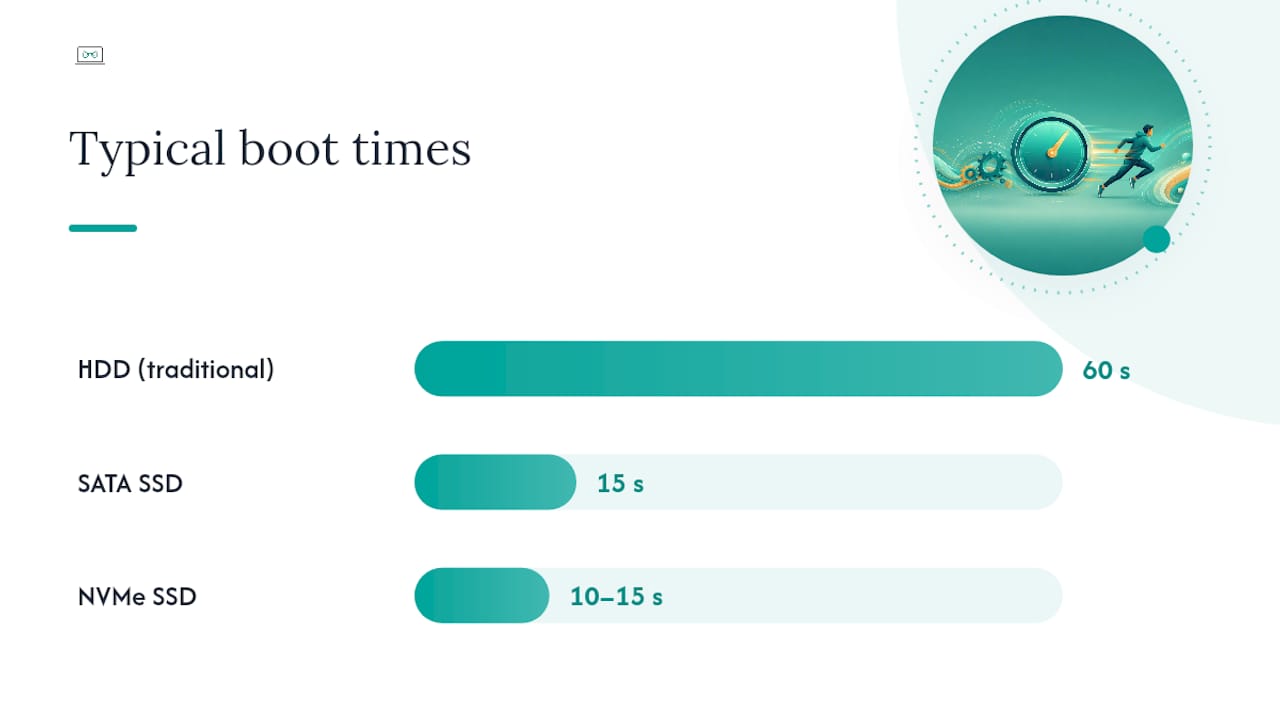
If your computer still has a traditional hard drive (HDD), that's very likely your single biggest performance issue, and replacing it with a solid-state drive (SSD) is the upgrade most likely to make the machine feel new again. HP's research on speeding up slow PCs points to the HDD-to-SSD switch as the single most impactful hardware change most users can make, and the physics backs that up: a spinning HDD has moving parts reading data mechanically, while an SSD reads electronically with no moving parts at all.
| Drive type | Typical boot time | Relative throughput |
|---|---|---|
| HDD (traditional) | 60 seconds | Baseline |
| SATA SSD | 15 seconds | Roughly 5 to 10x HDD |
| NVMe SSD | 10 to 15 seconds | Roughly 6x HDD |
Free space matters just as much as drive type. On an SSD, XDA Developers explains that garbage collection — the background process that clears deleted data so new writes stay fast — needs breathing room to work. A nearly full SSD slows down noticeably because that housekeeping process has nowhere to work. Keep free space on an SSD to maintain performance; on an older HDD, maintaining sufficient free storage space is also important for system health.
Freeing that space doesn't need to be complicated:
- Run Storage Sense (Settings > System > Storage) to auto-clear temp files and old downloads on a schedule
- Use Disk Cleanup for a manual one-off pass, particularly useful after a big Windows update leaves cleanup files behind
- Uninstall large apps you haven't opened in six months. Steam game libraries and old creative suites are common culprits
- Pause cloud sync tools (OneDrive, Dropbox, Google Drive) while you're diagnosing performance, since they run constant background disk activity
A typical before/after: a five-year-old laptop with an HDD boots in around ninety seconds and takes another thirty to open a browser. Swap in a SATA SSD and it boots in fifteen seconds flat, with apps opening almost instantly. The upgrade itself runs $60 to $150 for the drive depending on capacity, plus one to two hours of labour if you're paying someone to do it, or a weekend afternoon if you're comfortable with a screwdriver and a data migration tool.
Pro Tip: If your laptop supports it, choose NVMe over SATA SSD; it's a similar price these days but noticeably faster for anything involving large files. And clone your existing drive rather than doing a fresh Windows install if you want to avoid reinstalling every app and reconfiguring settings from scratch.
When to add RAM and how to read CPU limits
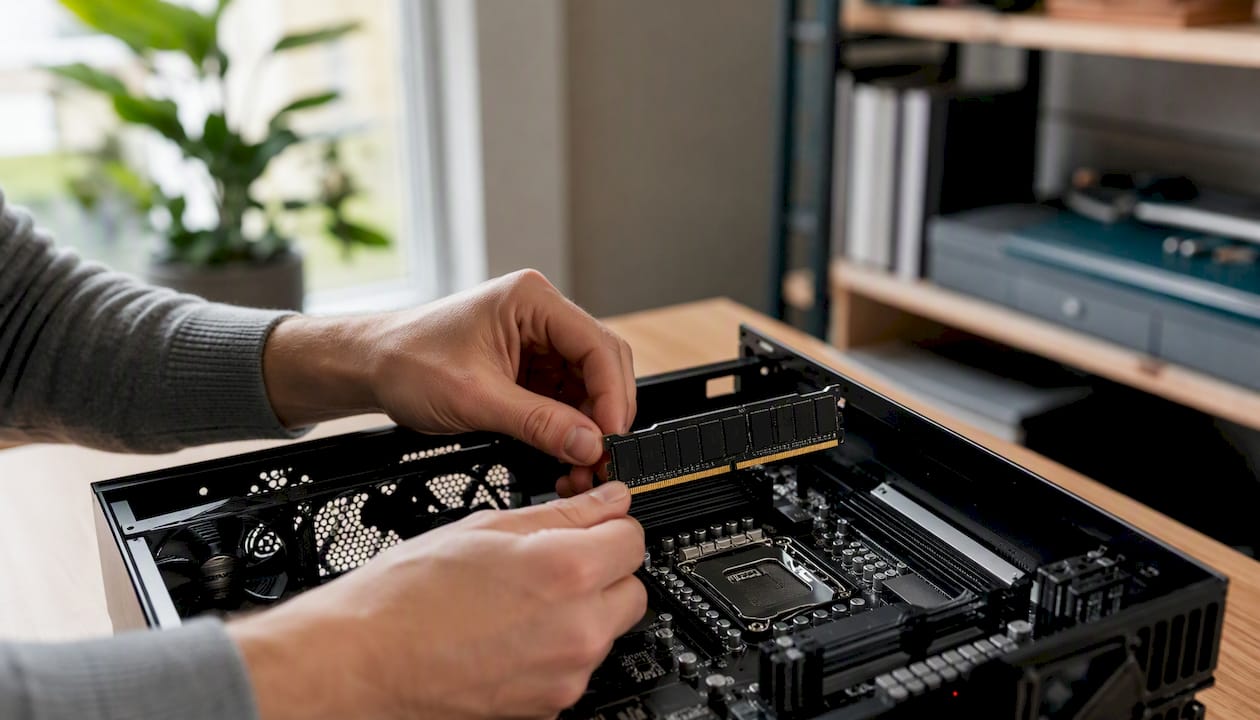
Memory usage sitting consistently above 80% in Task Manager is the clearest signal you need more RAM, and for 2026, HP's guidance treats 16 GB as the practical minimum for anyone running a browser with multiple tabs alongside office software or video calls. If you're still on 8 GB and constantly juggling apps, that ceiling is very likely your computer performance issue, not the CPU or the drive.
CPU is a different story, because unlike RAM, you usually can't upgrade it separately on a laptop, and on many modern desktops the CPU is soldered or requires a matching motherboard socket. If Task Manager shows CPU sustained near 100% during normal work, and closing background apps doesn't bring it down, you're facing a genuine performance ceiling rather than a fixable configuration issue.
Before buying RAM, work through this checklist:
- Confirm whether your laptop has upgradeable RAM at all. Many ultra-thin laptops solder RAM to the motherboard, meaning no upgrade is physically possible
- Check your current RAM speed and type (DDR4 vs DDR5) so the new sticks match. Mismatched RAM either won't work or will run at the slower module's speed
- Buy RAM in matched pairs where possible for dual-channel performance, which is meaningfully faster than a single stick of the same total capacity
- Check your motherboard or laptop's maximum supported RAM before buying more than it can use
A RAM upgrade from 8 GB to 16 GB typically costs $50 to $100 for the modules and takes fifteen to thirty minutes if your device supports user-accessible RAM. It's usually the cheapest fix per dollar of noticeable improvement, cheaper than an SSD in most cases and far cheaper than a new machine.
Advanced checks: drivers, firmware, and failing hardware
When the basics don't fix it, three built-in Windows tools dig deeper without needing any third-party software. Open Command Prompt as administrator and try these:
- CHKDSK (
chkdsk /f /r) scans the drive for bad sectors and file system errors. Takes anywhere from ten minutes to a few hours on a large, heavily used drive, and usually needs a restart to run fully. - SFC (
sfc /scannow) checks and repairs corrupted Windows system files. Runs in five to fifteen minutes. - DISM (
DISM /Online /Cleanup-Image /RestoreHealth) repairs the underlying Windows image that SFC draws from. Run this first if SFC reports errors it can't fix. Takes ten to twenty minutes with an internet connection.
Thermal throttling is worth ruling out too, particularly on laptops. If the fan runs constantly, the case feels hot, and performance drops the longer you use the machine, dust buildup in the vents is often the culprit. A can of compressed air through the intake and exhaust vents every six months prevents this outright.
Failing hardware shows specific warning signs before it dies completely: SMART warnings on a drive (visible through tools like CrystalDiskInfo), unusual clicking noises from an HDD, or recurring blue screens referencing the same driver or memory address. Intel's own guidance is direct about this: CPU, RAM, and disk are the three components most responsible for overall performance, and if one is genuinely failing rather than just overloaded, no amount of software tuning will fix it.
A five-year-old drive showing SMART warnings isn't a performance problem to troubleshoot. It's a backup problem to solve immediately, before the drive fails completely and takes your files with it.
Pro Tip: Never update BIOS/UEFI firmware unless you have a specific reason to (a known bug fix, a new CPU you're installing, or a stability issue the manufacturer has confirmed). Only download BIOS updates from your exact laptop or motherboard manufacturer's official site, and always back up your data first. A failed BIOS update can leave a machine unable to boot at all.
Simple maintenance habits that stop slowdowns coming back
A monthly ten-minute routine prevents most of the slowdowns this guide has covered. Set a recurring reminder for the first of each month and work through this list:
- Restart fully at least once a week rather than relying only on sleep. Notebookcheck's research on power-cycling found that relying solely on sleep or hibernate lets memory leaks and driver conflicts build up over time, and a full shutdown is what clears them.
- Check Storage Sense has run and free space is still above your threshold
- Confirm Windows updates have installed, not just downloaded
- Run a quick Windows Security scan if you haven't in the last fortnight
- Review your browser extensions and remove anything unused. XDA Developers notes that background apps, not just hardware age, are a leading cause of gradual slowdown, and browser extensions are among the worst offenders for silent RAM use.
For laptops specifically, check your power plan. Windows' Balanced mode suits most people, but if you've accidentally switched to Power Saver on a desktop or a plugged-in laptop, you're artificially capping CPU speed. Go to Settings > System > Power & battery to check and adjust.
Automating as much of this as possible removes the need to remember any of it: turn on Storage Sense's automatic schedule, let Windows Update install automatically overnight, and set your backup software to run on its own schedule too.
Deciding whether to upgrade parts or replace the whole computer
Once you know which resource is maxed out, the decision becomes mostly economic. Here's how the typical outcomes break down by spend:
The decision flow is straightforward once Task Manager has told you the bottleneck. If storage or RAM is the limiting factor and the rest of the machine is under three or four years old, upgrade those parts specifically. If the CPU itself is maxed out, or the machine can no longer receive security updates, or several components are all showing age at once, replacement usually makes more financial sense than throwing money at a machine that will still feel slow afterwards.
Also weigh what you actually run day to day. Modern productivity apps and AI-assisted tools ask more of a CPU and RAM than the software most machines were specified for three or four years ago. A machine that handled 2022's workload comfortably can feel genuinely underpowered against 2026's typical software stack, even with no change in how you use it.
Reviewing and updating your BIOS or UEFI firmware
BIOS (or UEFI on newer machines) is the firmware that runs before Windows even loads, and outdated firmware occasionally causes performance issues that no amount of software tuning will resolve, particularly around power management, fan control, or compatibility with newer hardware you've installed.
Check your current version by opening Command Prompt and typing wmic bios get smbiosbversion, then compare it against the latest version listed on your manufacturer's support page for your exact model. Only update if the manufacturer's release notes mention something relevant to you: a bug fix affecting stability, better support for a component you've upgraded, or a documented performance issue.
Updating is done through your manufacturer's own update tool where possible (most major brands build this into their own software) rather than manually flashing files, which carries real risk of leaving the machine unable to boot if it's interrupted partway through. Back up your data first, keep the laptop plugged into power throughout, and never turn it off during the update process.
How we approach a slow computer support call
When someone calls us about a sluggish machine, the process is deliberately unglamorous: we open Task Manager together over a screen share within the first few minutes, because guessing wastes everyone's time and your money. From there we work through the same diagnostic logic covered in this guide, just faster, because we've seen the same handful of causes hundreds of times across different clients scattered across time zones.
Before a call, it helps enormously if you have a few things ready:
- The device's model or serial number (usually on a sticker on the base, or found in Settings > System > About)
- A screenshot of Task Manager's Performance tab if you've already checked it
- Roughly how old the machine is and whether it's had any recent updates or new software installed
- A note of anything that changed recently, since sudden slowdowns almost always trace back to a specific change
Most straightforward software fixes are resolved within a single session, often thirty to forty-five minutes. If the diagnosis points to a hardware upgrade, we'll give you a clear cost estimate and timeframe before proceeding, and if follow-up is needed, we'll book it in rather than leaving you guessing about next steps.
Get remote IT support sorted without the callout fees or contracts
Myitbutler gets your slow computer diagnosed and fixed over a screen share, usually within the same session, without waiting days for an on-site technician or signing up to a monthly contract you don't need. That matters if you're running a business across time zones, working as a digital nomad between countries, or just don't have a local IT shop you trust with your laptop.

Our remote troubleshooting sessions follow the exact diagnostic-first approach covered in this guide: identify the bottleneck with Task Manager, apply the right fix, confirm it's resolved, and flag any hardware upgrade honestly rather than upselling one you don't need. Pricing is fixed and transparent before we start, backed by CCNA, CompTIA Security+, and PRINCE2 certifications and processes built to Australian standards, delivered wherever you happen to be working from. For businesses managing several devices or a distributed team, our managed IT services guide covers ongoing support that catches problems before they slow anyone down.
Before booking, have your device's model number and a rough sense of when the slowness started handy; it cuts diagnostic time significantly. You can book a free initial chat to describe the problem, or head straight to Myitbutler to see how a paid troubleshooting session works.
Sources
- HP Tech Takes (AU) — diagnostic-first guidance
- Microsoft Support — Tips to improve PC performance in Windows
- MakeUseOf — improving Windows performance without spending
FAQ
Why is my computer having performance issues?
Most computer performance issues trace back to one overloaded resource, usually not enough free storage, insufficient RAM for your workload, or too many background apps competing for CPU time. Task Manager will show you which one within a minute.
How do I figure out what is slowing down my computer?
Open Task Manager with Ctrl + Shift + Esc, click Performance, and watch CPU, Memory, Disk, and Network for sixty seconds while using the machine normally; whichever sits sustained above 80% is your bottleneck.
How do I fix a slow PC and speed up performance?
Start with the free fixes: restart fully, close unused apps and tabs, disable High-impact startup items, run Storage Sense, and check for Windows updates.
Why is my PC suddenly underperforming?
A sudden slowdown almost always points to a recent change, a software update, malware, or a new background service, rather than gradual hardware wear. Check Task Manager's Startup tab and recent update history first.
When should I call a professional instead of fixing it myself?
If Task Manager shows a maxed-out CPU with no obvious cause, you see SMART warnings on your drive, or you're getting recurring blue screens, it's time to get a diagnosis from someone like Myitbutler rather than risk further data loss.