
The single best approach is to run every meeting through a DST‑aware visual planner, then send calendar invites that spell out each attendee's local time in plain text, using tools designed for AI productivity workflows like AmmarAI's AI for Social Media Managers. Rotate the awkward slots or switch to async updates when overlap is thin. Modern planners lean on the IANA timezone database, so the daylight saving maths is handled automatically. A professional IT partner can set this up once, properly, so nobody has to think about it again.
TL;DR:
- Visual, DST‑aware planners should be used to accurately find overlapping working hours across multiple time zones.
- Always include each attendee’s local time and the date explicitly in calendar invites to prevent scheduling errors.
- Re-verify meetings scheduled more than a month ahead, especially around daylight saving changes, to prevent drift and confusion.
- When overlap is minimal, rotating inconvenient meeting slots or using asynchronous updates can ensure fairness and reduce friction.
- Employ device widgets and secondary time zones in calendar apps to facilitate quick local-time lookups and maintain awareness of regional time differences.
Table of Contents
- Why visual, DST‑aware meeting planners solve most scheduling friction
- Calendar and invite best practices that prevent confusion
- Dealing with daylight saving time and date line quirks
- Fairness, rotation and asynchronous alternatives when overlap is tiny
- Device and calendar tips: widgets, secondary timezone and quick lookups
- When to call in an IT coordination partner
- The gap between good advice and what teams actually do
- Sources
- FAQ
Why visual, DST‑aware meeting planners solve most scheduling friction
Manual timezone conversion is where most scheduling errors start. Someone adds nine hours in their head, forgets a country just shifted its clocks, and a meeting lands an hour off for half the attendees. A visual planner removes that arithmetic entirely by laying every participant's working hours out as coloured blocks on a single timeline, so the overlap is something you see rather than calculate.
The technical backbone that makes this reliable is IANA timezone data, the same open database that most operating systems and calendar apps pull from. It tracks every regional daylight saving rule, including the ones that change without warning when a government amends its policy. A planner that skips this and hardcodes fixed offsets will quietly drift wrong twice a year.
Tools like Whenest build on this with an overlap finder, automatic DST handling, and shareable links that auto-convert to whoever opens them. The World Clock Meeting Planner takes a similar approach, colouring in working hours per location so you can scan for the column where every row sits inside business hours.
When you're picking a planner, check it against this list:
- Working-hours overlay that highlights genuine overlap, not just the raw time difference
- Shareable links that adjust automatically to the viewer's own timezone
- Calendar export in .ics format, compatible with Google Calendar, Outlook and Apple Calendar
- Holiday awareness so a proposed slot doesn't land on a public holiday for one team
- Team presets so you're not re-entering the same five cities every week
Before you commit to a tool, test it on a date six months out. Some planners handle DST correctly for the current week but stumble on future dates where the rule hasn't kicked in yet.
Calendar and invite best practices that prevent confusion
A well-built invite does the thinking for the recipient, so they never have to convert anything themselves. Follow these steps every time you send one:
- Set the event timezone explicitly in the calendar tool rather than relying on the sender's device default.
- List each attendee's local time in the invite body, not just the meeting organiser's time.
- Export as .ics and mention which calendar platform you tested it on, since some older Outlook versions render timezones oddly.
- Copy in a one-line local-time summary for every participant. Koalendar's planner recommends this exact approach, pasting the full breakdown into the invite, so nobody has to open a converter.
- Check any shared link auto-converts to the recipient's own timezone before you send it, rather than displaying a single fixed time.
This sounds like extra admin, but it takes about a short amount of time and it's the difference between a room that's ready on time and one where a third of attendees show up an hour late, or a day early.
Dealing with daylight saving time and date line quirks
Fixed-offset maths breaks the moment one region observes daylight saving and another doesn't. Australia's states don't even agree with each other on this, let alone with Europe or the US. That's precisely why the IANA/tzdata approach matters: it stores the actual rule for each region rather than a static number, so a planner built on it recalculates correctly when a clock shifts.
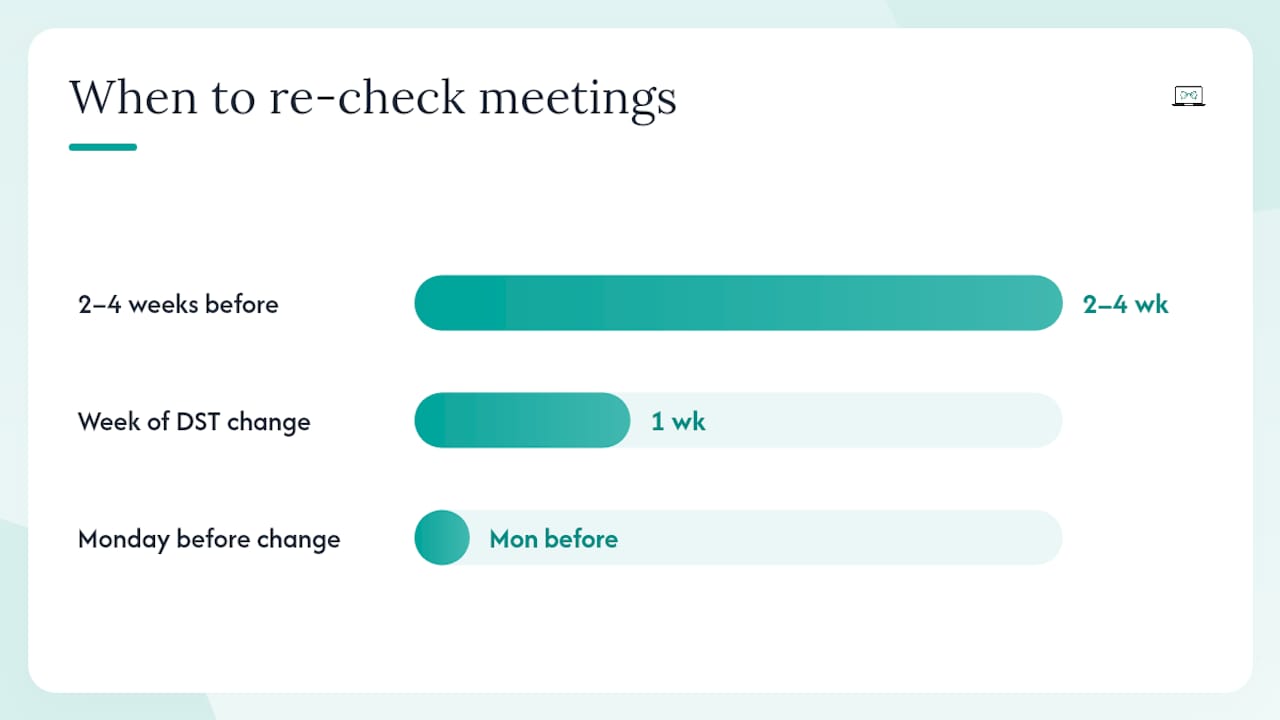
The safest habit is to re-check any meeting booked more than a month out, ideally two to four weeks before it happens, since that's the window where DST transitions in one hemisphere but not the other and quietly shifts the gap between attendees.
Meetings that cross the international date line bring a second trap. A call at 9pm in Sydney can be 8am the previous day in Los Angeles, and if your invite only shows a time with no date, someone will turn up 24 hours off. Good planners display the local date next to the local time for exactly this reason.
- Re-verify any recurring meeting the week either hemisphere changes its clocks
- Display the date, not just the time, for every attendee when a meeting spans midnight
- Test your planner on a date deliberately chosen after the next DST switch
- Watch for half-hour and quarter-hour offsets (India, parts of Australia, Iran) that trip up planners built only for whole-hour zones
Pro Tip: Set a recurring reminder in your own calendar for the Monday before any known DST changeover, just to eyeball your regular meetings and confirm the times still line up.
Fairness, rotation and asynchronous alternatives when overlap is tiny
When two teams sit twelve hours apart, there's no clever tool that invents a comfortable overlap. What you can control is who bears the inconvenience, and for how long.
- Rotate the bad slot. If a meeting only works at 6am for one region, alternate which region takes that shift weekly or monthly rather than leaving the same people to always lose sleep.
- Record instead of repeating. For updates rather than decisions, a recording plus a shared document often works better than dragging everyone into a live call.
- Run a quick poll before locking a recurring time. A five-minute vote across the team surfaces genuine constraints (school pickups, second jobs, health appointments) that a calendar grid never shows.
- Set a UTC deadline instead of a live meeting when the goal is just "everyone reports progress by end of day". A base time in UTC, translated once per person, removes the need to synchronise at all.
Fairness here isn't just a morale nicety. Teams that rotate openly and vote on recurring slots see far fewer recurring complaints about "always" being the ones stuck with the terrible hour, because the process is visibly shared rather than defaulted onto whoever has the least seniority to push back.
Device and calendar tips: widgets, secondary timezone and quick lookups
The best fix for constant "what time is it there" questions is one you set up once and never think about again: OS-level world-clock widgets and a secondary timezone in your calendar app. Both iOS and Android let you pin a handful of cities to your lock screen or widget tray, and Google Calendar, Outlook and Apple Calendar all support showing a second timezone next to your own in the day view.
A few habits worth adopting alongside that:
- Keep a bookmarked meeting-planner tab (or a browser extension) open for instant lookups when someone asks "does 3pm work for you?"
- Maintain a shared team document or board listing everyone's working hours and preferred contact windows, so you're not guessing or messaging at odd hours
- Set your phone's clock app to show two or three cities permanently rather than one, especially if you manage vendors or contractors in a different region
- Review that list every few months. Teams change, people relocate, and a stale widget showing the wrong city causes exactly the confusion it was meant to prevent
When to call in an IT coordination partner
Some setups outgrow a free planner. If you're syncing calendars across multiple platforms, running recurring global all-hands with dozens of attendees, or automating timezone-aware alerts across several systems, that's a configuration job worth outsourcing.
Some IT service providers build shared planners, calendar sync, and automated timezone alerting for distributed teams, backed by enterprise IT experience and relevant certifications. If your scheduling stack has become its own part-time job, it's worth reading how cross-timezone IT support is typically structured, or booking a free chat to talk through what a proper setup looks like for your team.
The gap between good advice and what teams actually do
Most articles on this topic tell you to "be mindful of time zones," which is advice so vague it's useless. The teams that actually get this right treat it as an infrastructure problem, not a soft-skills one. They pick one planner, they standardise their invite format, and they stop relying on any individual's mental arithmetic.
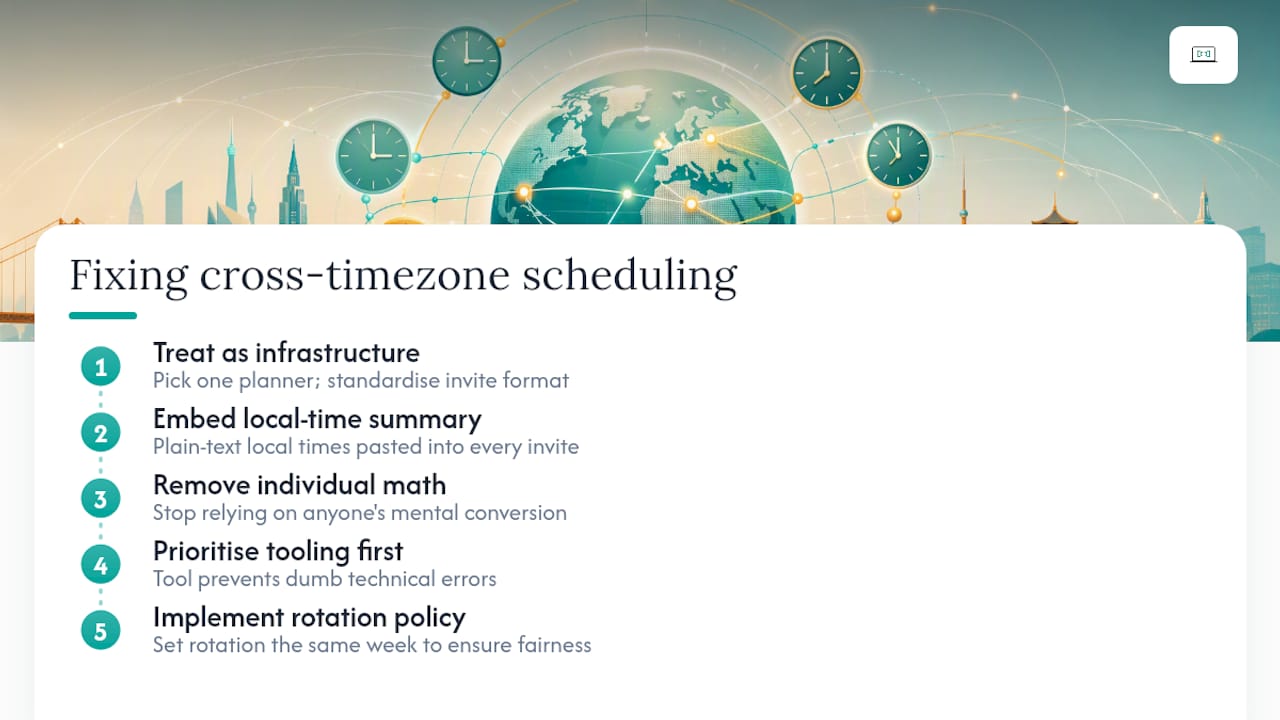
What's underrated is the invite text itself. Everyone obsesses over which planner tool to buy, but a plain-text local-time summary pasted into every invite prevents more errors than any app feature, because it removes the need for the recipient to trust anyone's conversion at all, including the software's.
Where conventional advice really falls short is on fairness. Plenty of guides explain the tools and stop there, as if the technical problem and the human one are the same thing. They're not. A perfectly configured planner still lets one region always take the 11pm call unless someone actively rotates it. Prioritise the tool first, because it prevents the dumb errors, but build the rotation policy in the same week. Teams that do both stop having the same argument every quarter.
— Thomas
Sources
For quick lookups and planning, the Free Meeting Time Zone Planner and World Clock Meeting Planner both handle overlap visually and pull from current timezone data. Whenest adds shareable auto-converting links and .ics export if you need to send invites without back-and-forth. All three rely on the underlying IANA/tzdata rules rather than fixed offsets, which is the detail that actually matters when daylight saving shifts mid-project.
- Free Meeting Time Zone Planner | Koalendar
- Whenest — Schedule Meetings Across Time Zones
- World Clock Meeting Planner - Time Zones
FAQ
How should you schedule a meeting with someone in another time zone?
Use a visual, DST-aware planner to find genuine working-hours overlap, then send an invite that states each person's local time and date explicitly rather than relying on the recipient to convert it themselves.
How do I keep two country times visible on my home screen?
Add a world-clock widget on your phone's home screen and turn on the secondary timezone setting in your calendar app. Both iOS and Android support pinning multiple cities without opening a separate app.
What is the best time to plan meetings across time zones?
There's no universal best time. Rather than one fixed slot, aim for a window inside standard business hours for as many participants as possible, and rotate the meeting time when a comfortable overlap doesn't exist for everyone.
How can I set a scheduler to stay accurate across time zones?
Choose a planner built on IANA/tzdata rather than fixed offsets, and test it against a date at least a month ahead to confirm it accounts for any upcoming daylight saving change correctly.
What should I do if there's almost no overlap between two regions?
Rotate the inconvenient slot between teams on a weekly or monthly cadence, or replace the live meeting with a recording and shared document tied to a fixed UTC deadline.