
A slow, unreliable office network doesn't just frustrate your team. It quietly drains productivity, creates security gaps, and holds your business back from scaling. Many small businesses and startups wire up their first office network without a real plan, then spend months dealing with dropped connections, slow file transfers, and devices that won't talk to each other. This guide walks you through exactly what hardware you need, how to set everything up step by step, and how to keep your network secure and performing well long after the initial install.
Table of Contents
- What you need before you start: Hardware and planning essentials
- Step-by-step guide: Setting up your small office network
- Troubleshooting and common mistakes to avoid
- How to verify performance and keep your network secure
- Why most small office networks fail: The real reasons (and what works))
- Expert help and next steps for your office network setup
- Frequently asked questions
Key Takeaways
| Point | Details |
|---|---|
| Reliable hardware matters | Investing in the right router, switch, and cabling prevents downtime and enables smooth business growth. |
| Step-by-step setup reduces risk | Following a proven installation process protects your business from costly network mistakes. |
| Hybrid networks work best | Combining wired and wireless connections lets your team work flexibly without sacrificing reliability. |
| Professional support saves time | Getting expert help can prevent security breaches and keep your office running without IT headaches. |
What you need before you start: Hardware and planning essentials
Now that you know why setting up your office network matters, let's look at what you actually need to get started.
Before you buy a single cable or router, you need a clear picture of your office layout, how many users you have, and what types of devices will connect. Skipping this step is the number one reason small office networks underperform from day one.
Core hardware you'll need
Core hardware for small office networks includes a router (your internet gateway), a managed PoE switch (for device connectivity), Ethernet Cat6 cabling (for reliable wired links), and two to four WiFi 6 access points (APs) to deliver coverage without congestion. Each component plays a specific role, and cutting corners on any one of them creates problems down the line.
Here's a quick reference table to help you plan your budget:
| Device | Purpose | Estimated cost | Recommended models |
|---|---|---|---|
| Router/firewall | Internet gateway, security | $100 to $300 | TP-Link ER7206, Ubiquiti UDM, Cisco Meraki MX67 |
| Managed PoE switch | Connects and powers devices | $90 to $250 | TP-Link SG2008P, Ubiquiti USW-8-60W |
| WiFi 6 access points | Wireless coverage | $100 to $150 each | TP-Link EAP670, Ubiquiti U6-Lite |
| Cat6 Ethernet cable | Wired backbone | $0.20 to $0.40/ft | Any reputable brand |
| UPS (battery backup) | Protects against outages | $80 to $200 | APC Back-UPS series |
Wired, wireless, or hybrid?
Wired connections are faster and more reliable, especially for workstations, printers, and VoIP phones. Wireless is essential for laptops, tablets, and mobile devices. For most small offices, a hybrid approach works best. Run Ethernet to fixed desks and use WiFi 6 APs for everything else.
- Wired (Cat6): Best for reliability, low latency, and security
- Wireless (WiFi 6): Best for flexible devices and guest access
- Hybrid: The practical choice for most offices with 5 to 20 users
Planning your layout
Count every device that will connect: computers, printers, phones, smart TVs, security cameras, and any IoT equipment. Map out where each one lives in the office. This tells you how many switch ports you need, where to run cables, and where to mount your access points.
Pro Tip: Plan your cable routes and AP placement on paper before you purchase anything. Moving a cable run after walls are finished can cost hundreds of dollars in labor. A rough floor plan sketch takes 20 minutes and saves real money.
A reliable network design considers future growth too. If you have 8 users today, buy a switch with 16 to 24 ports so you're not replacing hardware in 18 months.
Step-by-step guide: Setting up your small office network
Once you've gathered your hardware and laid out your plan, it's time to put your office network together step by step.
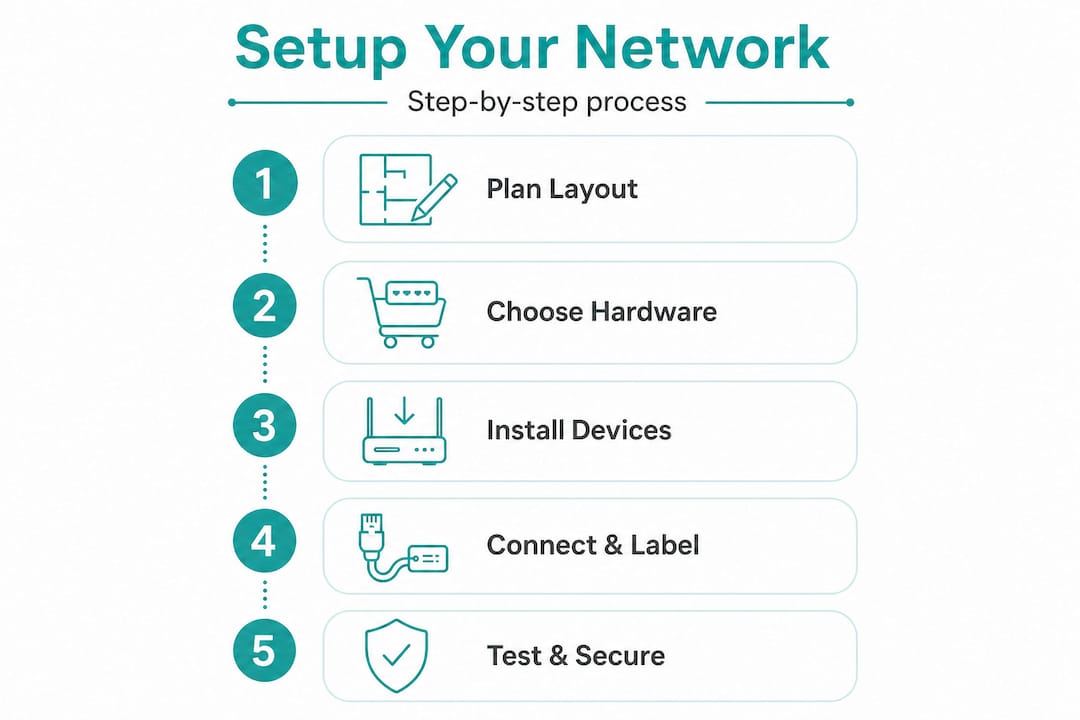
The network setup process follows a logical sequence: connect modem to router WAN port, configure the router with your SSID (network name), WPA3 password, and firewall settings, install the switch and run cables, mount your APs, connect devices one by one, set up VLANs for guest, staff, and IoT traffic, then test speeds and file sharing.
Here's that process broken down clearly:
- Connect your modem to the router's WAN port. This is the single cable that brings internet into your network.
- Log into your router's admin panel (usually via 192.168.1.1) and change the default admin password immediately.
- Configure your SSID and WiFi password using WPA3 encryption. WPA3 is the current security standard and is far stronger than the older WPA2.
- Enable the built-in firewall and turn off any remote management features you don't need.
- Install your managed switch and run Cat6 cables from the switch to each desk or device location.
- Mount your WiFi 6 access points at ceiling height, roughly one AP per 1,000 to 1,500 square feet of office space.
- Connect devices sequentially and confirm each one gets an IP address and internet access before moving to the next.
- Set up VLANs (Virtual Local Area Networks) to separate guest traffic, staff devices, and IoT equipment. This is a critical security step that many small offices skip.
- Run speed tests from multiple locations and verify that file sharing and printing work across the network.
Security reminder: Always change default passwords and enable the firewall before connecting any devices to the network. Default credentials are publicly known and are the first thing attackers try.
Cloud-managed vs. DIY local setup
| Factor | Cloud-managed (UniFi, Omada, Meraki) | DIY local setup |
|---|---|---|
| Setup complexity | Low to medium | Medium to high |
| Remote management | Yes, from anywhere | Requires VPN or on-site access |
| Ongoing cost | Subscription or one-time license | No recurring fees |
| Security updates | Automatic | Manual |
| Best for | Growing teams, remote IT support | Very small, static setups |
SMBs that segment guest traffic with VLANs report 30% fewer accidental breaches compared to flat networks where all devices share the same subnet. That single configuration step is one of the highest-value things you can do during setup.
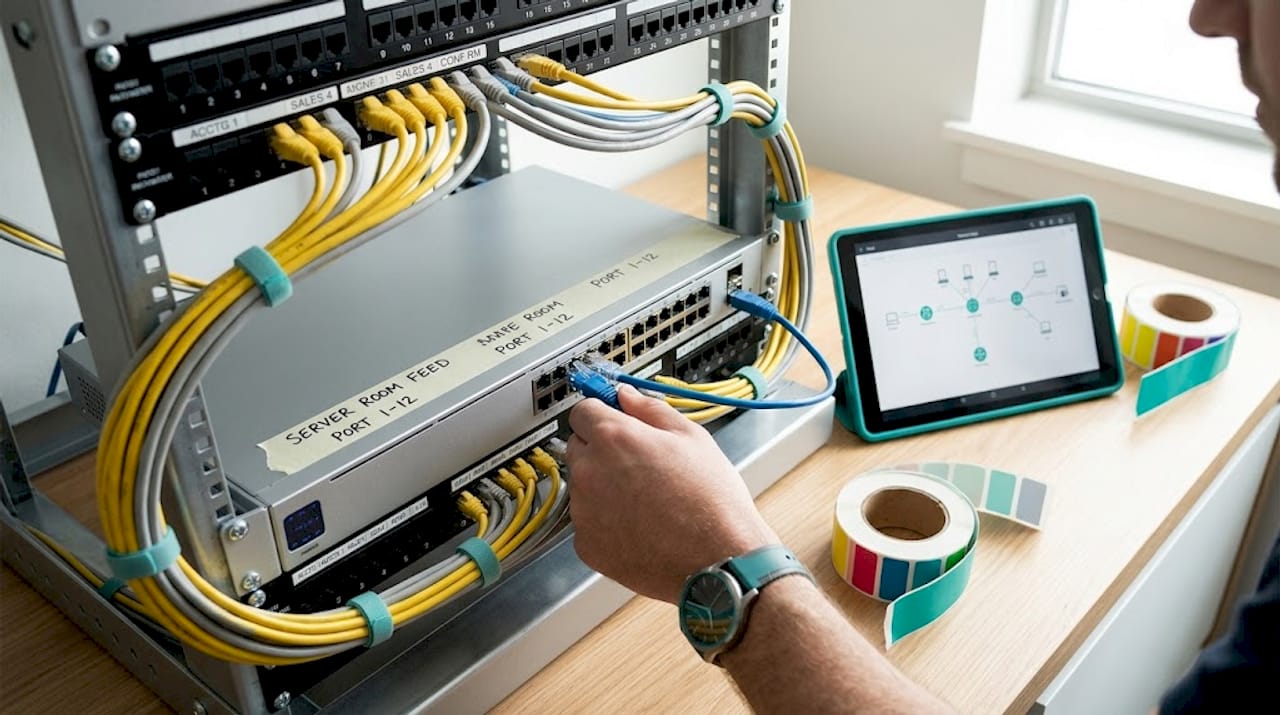
Pro Tip: Label every cable and every switch port as you go. Use a label maker or even masking tape with a marker. When something breaks at 9 AM on a Monday, you'll be glad you did this.
Troubleshooting and common mistakes to avoid
Even with a solid plan, many network setups hit snags. Here's how to minimize mistakes and handle issues if they come up.
The most common problems in small office networks aren't hardware failures. They're configuration oversights and shortcuts taken during setup. Knowing what to watch for saves hours of frustration.
Common pitfalls to avoid:
- Leaving default passwords in place. Every device ships with a known default login. Change them all before connecting anything to the internet.
- Mixing old and new hardware. A single old 100Mbps switch in a Gigabit network creates a bottleneck that slows everything down.
- Poor WiFi access point placement. Mounting APs in corners or near metal shelving kills signal strength. Ceiling-center placement is almost always better.
- Insufficient cabling. Running only one cable to a desk sounds fine until someone adds a second monitor with a built-in webcam, a VoIP phone, and a docking station.
- Skipping network documentation. If you don't write down your IP scheme, VLAN setup, and passwords, the next person to touch the network starts from scratch.
- Overloading a consumer-grade router. Home routers aren't built for 10 to 20 simultaneous business users. They overheat and drop connections under sustained load.
When to call in professional IT troubleshooting support:
According to research on small office network complexity, DIY setups are viable for under 10 users with simple needs and can be completed in one to two days. But for 15 or more users, or any setup involving VPNs, cloud integration, or compliance requirements, hiring a professional adds 50 to 100 percent to upfront cost but significantly cuts the risk of breaches and costly downtime.
The math is simple: one hour of network downtime for a 10-person team at $50 per hour per person costs $500 in lost productivity. A professional setup that prevents two or three outages per year pays for itself quickly.
Pro Tip: Take photos of your rack, cable runs, and switch layout as you build. Store them with your network documentation in a shared folder. This is your network's "manual" and it's invaluable when something goes wrong six months later.
How to verify performance and keep your network secure
Once the network is up and running, a few final checks help ensure reliability and protection for your business data.
Turning on a network and assuming it works correctly is a mistake. A structured verification process catches configuration gaps before they become real problems.
Steps to verify your network is performing correctly:
- Run a speed test from a wired device and compare it to your ISP's advertised speed. You should see 90 percent or more of your plan's speed on a wired connection.
- Test wireless speeds from different areas of the office to confirm AP coverage is consistent.
- Verify VLAN segmentation by connecting a device to the guest network and confirming it cannot access internal file shares or printers.
- Test file sharing and printing from multiple devices to confirm everything communicates correctly.
- Check firewall logs to confirm the firewall is active and blocking unexpected inbound traffic.
Ongoing security checklist:
- Firewall enabled and logging traffic
- Guest and staff networks on separate VLANs
- All device passwords changed from defaults
- WPA3 encryption enabled on all SSIDs
- Firmware updates applied to router, switch, and APs
- Admin access restricted to a specific management VLAN
For cloud-managed networks, Cisco Meraki sizing guidelines recommend the MX67 or MX68 for 1 to 50 users, MS120 switches, and MR36 or MR44 APs at one per 1,000 to 1,500 square feet. Enable IDS/IPS (Intrusion Detection and Prevention System) and maintain a 20 to 30 percent throughput buffer so the system isn't running at capacity during peak hours.
Adding IDS/IPS to your cloud-managed network means the system actively monitors traffic for attack patterns and blocks threats automatically. For a small office without a dedicated IT person on-site, this is one of the most practical security upgrades available.
Schedule a network performance check every six months. Review logs, update firmware, rotate passwords, and confirm that your VLAN setup still matches how your team actually uses the network. Businesses change. Networks need to keep up.
Why most small office networks fail: The real reasons (and what works)
After more than 15 years working with businesses of all sizes, we've seen the same failure patterns repeat. And almost none of them are about the hardware.
The most common failure mode is this: someone sets up a network quickly, it works well enough at first, and then the business grows. More devices get added. A new staff member plugs a personal router into a wall port to get better WiFi in their corner. Someone sets up a NAS (Network Attached Storage) device without telling anyone. Suddenly the network is a tangle of overlapping subnets, unknown devices, and no documentation. Troubleshooting becomes archaeology.
The second failure mode is the cheapest hardware trap. Buying a $40 consumer router because it "does the same thing" as a $200 business router is a decision that feels smart until the router locks up under load, doesn't support VLANs, and can't be managed remotely. The real cost isn't the hardware price. It's the downtime and the messy upgrade you'll need to do anyway, just under pressure.
Cloud-managed solutions like Meraki, UniFi, and Omada are ideal for startups and SMBs that lack on-site IT expertise. They avoid the need for command-line interface (CLI) configuration, make remote troubleshooting straightforward, and let you scale without replacing your entire infrastructure. For a small team that wants to focus on the business instead of the network, cloud-managed is almost always the right call.
Here's the hard-won lesson we share with every client: the 20 percent more you spend on the right hardware and a proper initial setup saves twice as much in headaches, emergency support calls, and lost productivity over the following two years. The best time to set up your network right is before the business depends on it.
Invest in cloud-managed network support from the start, document everything, and treat your network as a business-critical system. Because it is.
Expert help and next steps for your office network setup
If you'd rather focus on your business, expert setup and support is just a click away.
Setting up a small office network correctly takes planning, the right hardware, and attention to security details that are easy to miss. Our team at MyITButler brings over 15 years of enterprise experience to small and medium-sized businesses that need professional results without the enterprise price tag.

Whether you need help planning your network from scratch, troubleshooting an existing setup, or ongoing managed support, we offer transparent fixed pricing with no long-term contracts. Book an IT support consultation and get a clear picture of what your office network needs to support your team reliably. Our remote IT support covers setup, vendor coordination, security reviews, and long-term maintenance. When you're ready to take control of your IT, the client support portal puts everything you need in one place.
Frequently asked questions
What is the best network hardware stack for a 10-person office?
TP-Link Omada and Ubiquiti UniFi offer affordable, reliable stacks for small offices, with the TP-Link ER7206 router at around $130, SG2008P switch at $90, and EAP670 APs at $100 to $120 each, while Cisco Meraki is the top choice for cloud-managed security with licensing.
How much does it cost to set up a small office network?
For 5 to 10 employees, expect a total professional setup cost of $4,500 to $7,500 including APs, a PoE switch, firewall, and cabling, though a quality TP-Link Omada or Ubiquiti UniFi starter stack can be built for under $500 to $600 if you handle the installation yourself.
Is a wired or wireless network better for small offices?
A hybrid setup is the best approach: wired Ethernet Cat6 is preferred for reliability and low latency on critical applications, while WiFi 6 handles flexible devices and mobile users without sacrificing performance.
Can small offices set up their own networks without IT help?
DIY setup is realistic for under 10 users with straightforward needs and can typically be completed in one to two days, but hiring a professional for 15 or more users reduces the risk of security breaches and costly downtime significantly.